Merge JPG to PNG Online

Merge JPG to PNG online with a simple tool that converts JPG, JPEG, and PNG images into PNG format. Process a single image or multiple images, combine pictures into one image, and create a PNG file quickly without installing additional software.

Add Images to Convert or Combine
Drag & drop JPG, JPEG or PNG images here
JPG · JPEG · PNG  |  PNG output · Processed in your browser
PNG output | Lossless format
+ No images selected. Add images above to begin.

Merge JPG to PNG online when you want to convert JPG, JPEG, and PNG images into PNG format or combine several pictures into one image. CombJPG makes it easy to process your images directly in your browser without installing complicated photo-editing software.

You can convert a single image to PNG or combine multiple JPG images into one PNG. Arrange your pictures, choose a horizontal or vertical layout, adjust the spacing and alignment, and create a PNG image for sharing, documents, presentations, comparisons, or everyday use.

Merge JPG to PNG online and combine multiple images with CombJPG

What Is Merge JPG to PNG and How Does It Work?

Merge JPG to PNG is a simple way to convert JPG, JPEG, and PNG images into PNG format and bring multiple pictures together in one image. Instead of opening a complicated photo editor, you can upload your images, arrange them, select a layout, and create a PNG file using CombJPG.

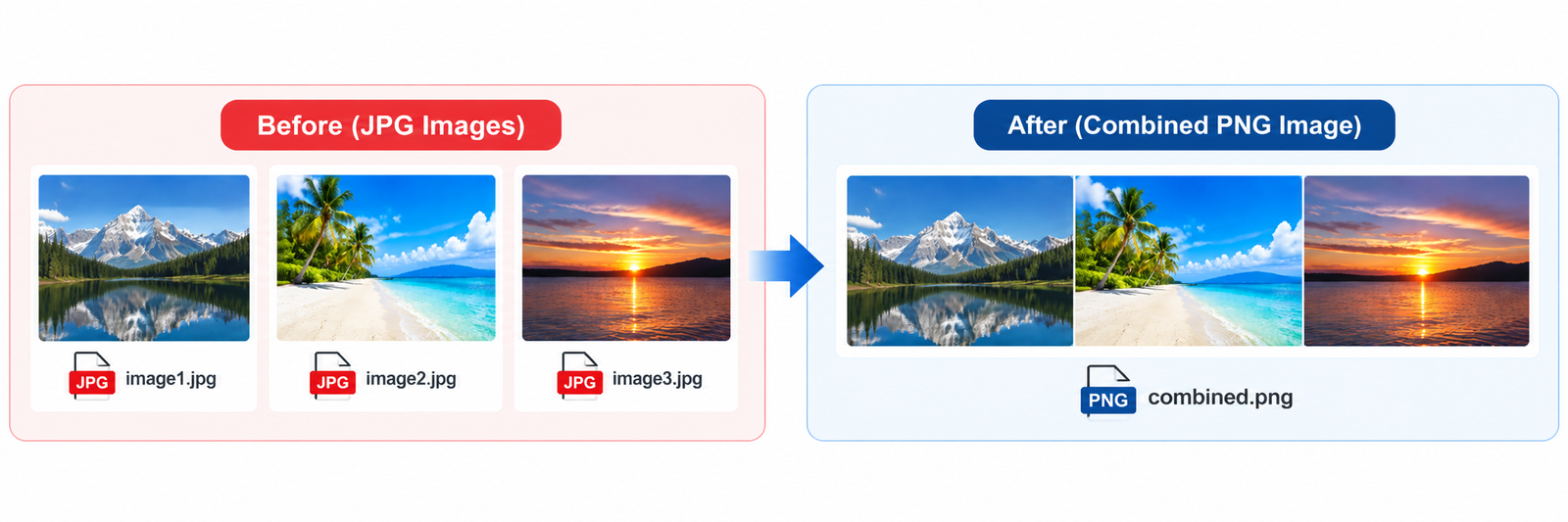
The tool supports both single-image conversion and multiple-image processing. If you upload one JPG or JPEG image, you can convert it into PNG format. If you add several images, you can arrange them horizontally or vertically and combine them into a single PNG image. This is useful for screenshots, image comparisons, scanned pages, tutorials, and other visual content.

PNG is a useful image format when you want to preserve sharp details or need support for transparency. When a JPG image is converted to PNG, however, its original image quality is not restored, and JPG transparency cannot be recovered. The output format changes to PNG, while the appearance and dimensions depend on the source image and the settings you choose.

With CombJPG, you can merge JPG images into PNG without installing additional software. Upload your files, arrange them in the order you prefer, adjust spacing and alignment, and download the finished image for sharing, documents, presentations, or everyday use.
How to Merge JPG, JPEG, and PNG into PNG

Upload Your JPG, JPEG, or PNG Images

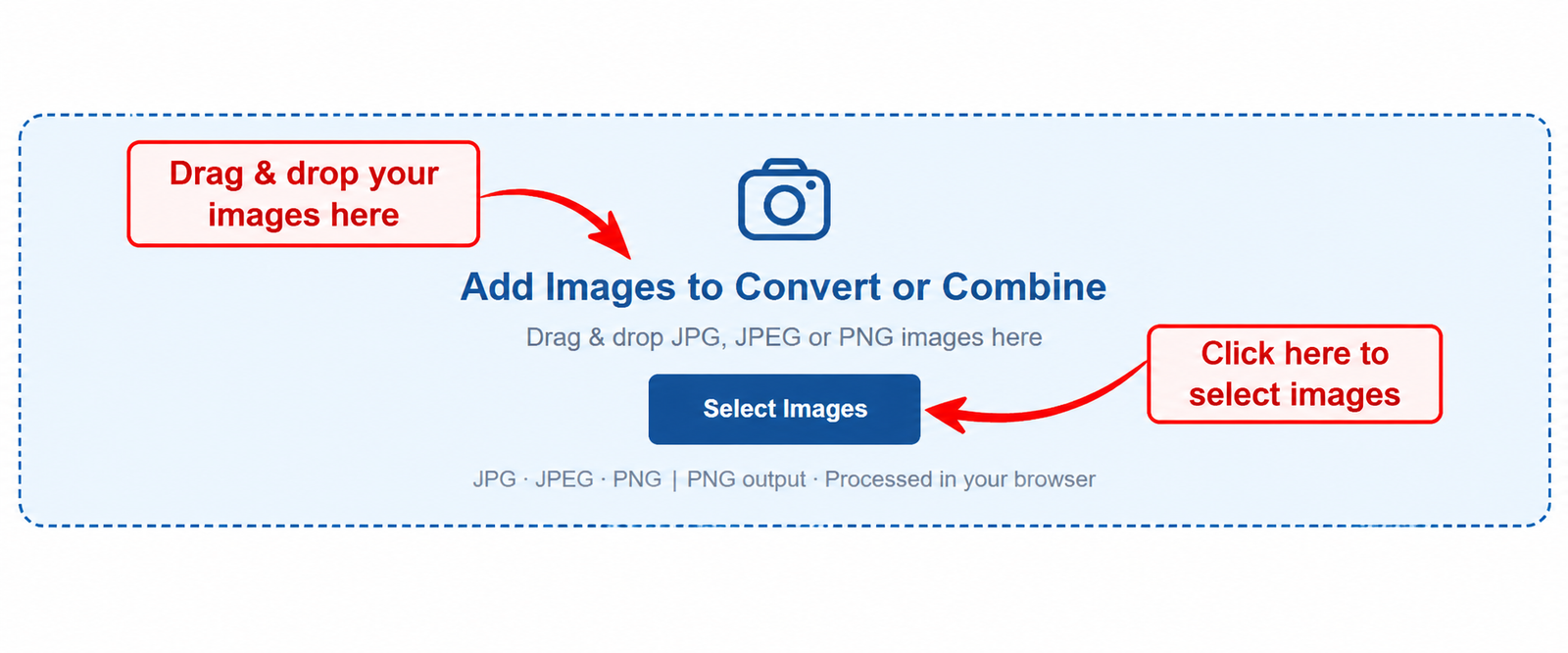
If you want to convert or Merge JPG to PNG, click Select Images to choose JPG, JPEG, or PNG files from your device, or drag and drop your images into the upload area. You can upload a single image for conversion or select multiple images to merge JPG, JPEG, and PNG files into one PNG.

Upload JPG JPEG and PNG images to merge them into PNG online

Arrange Your Images

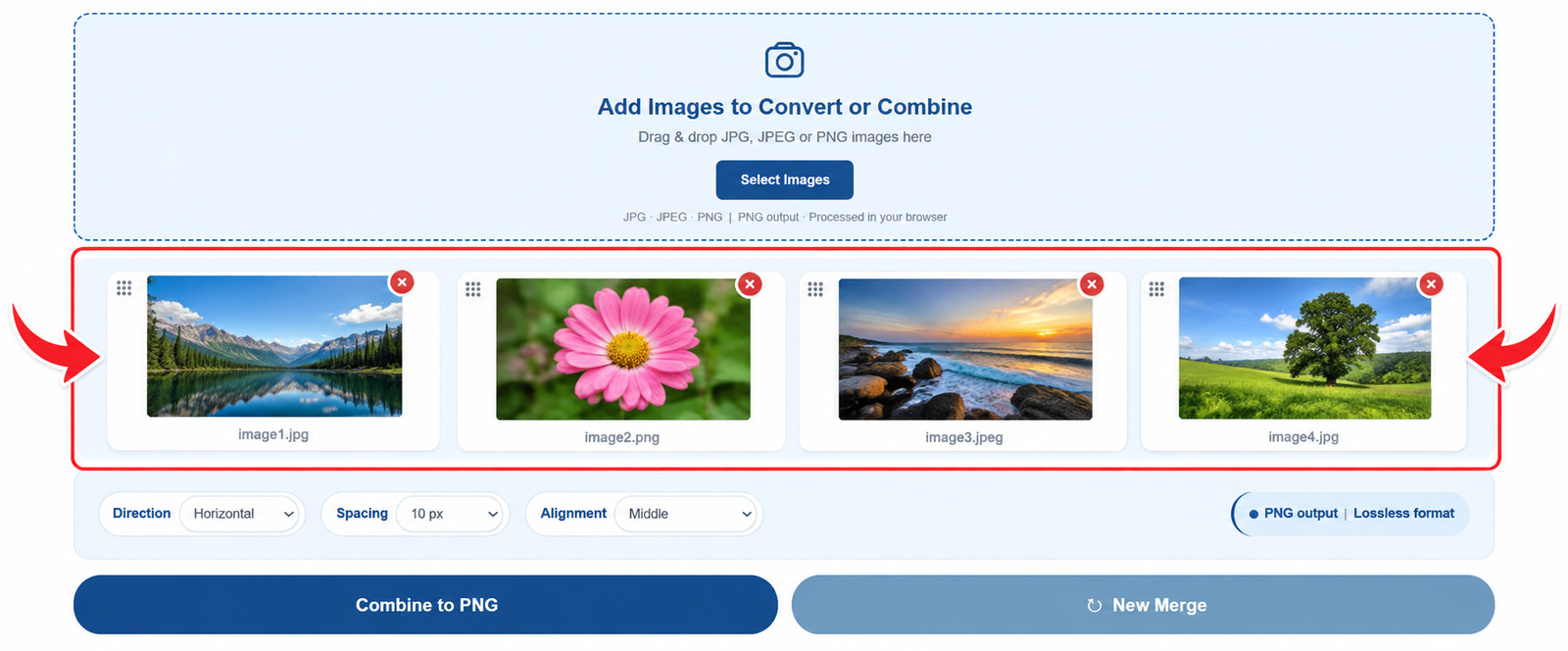
After uploading your files, review the image previews and arrange your pictures in the order you want them to appear. Check the selected images and remove any files you do not need. Organizing your images before combining them helps you create a clean, well-arranged PNG image.

Preview and arrange uploaded JPG JPEG and PNG images before combining

Choose Direction, Spacing, and Alignment

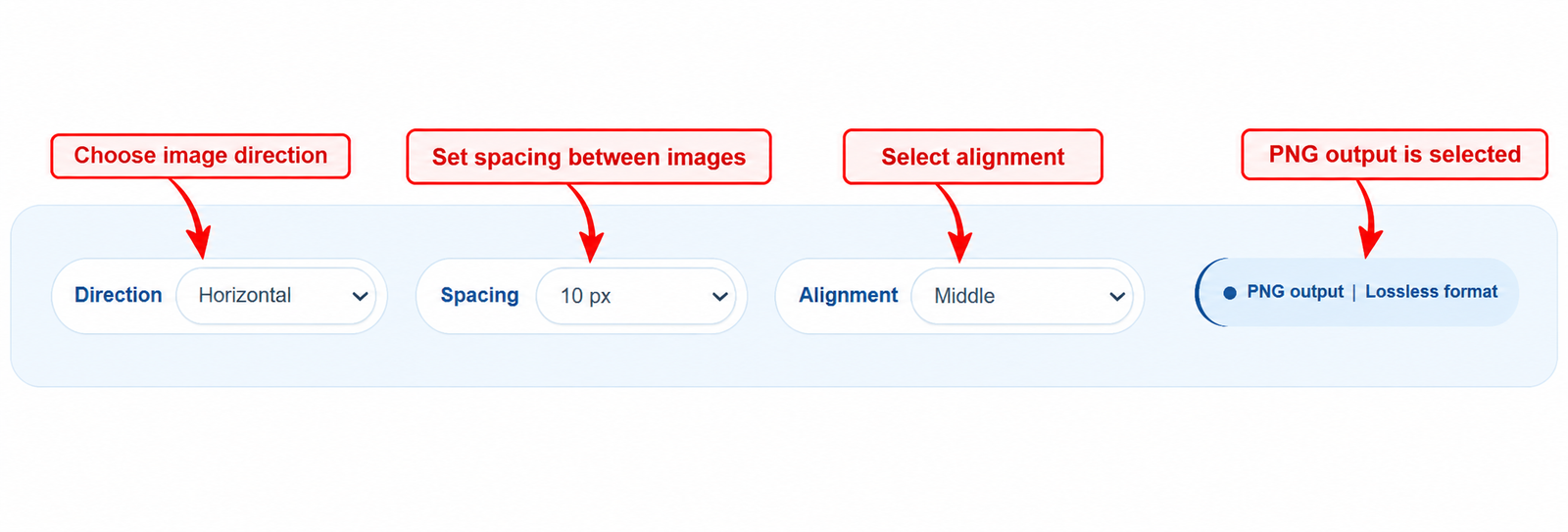
Select Horizontal to place your images side by side or Vertical to arrange them from top to bottom. Use the spacing setting to control the gap between pictures, then choose the available alignment option to adjust their positioning. These settings help you customize the layout before you combine images into one PNG.

Choose horizontal or vertical direction and adjust spacing and alignment for a combined PNG

Combine and Download Your PNG Image

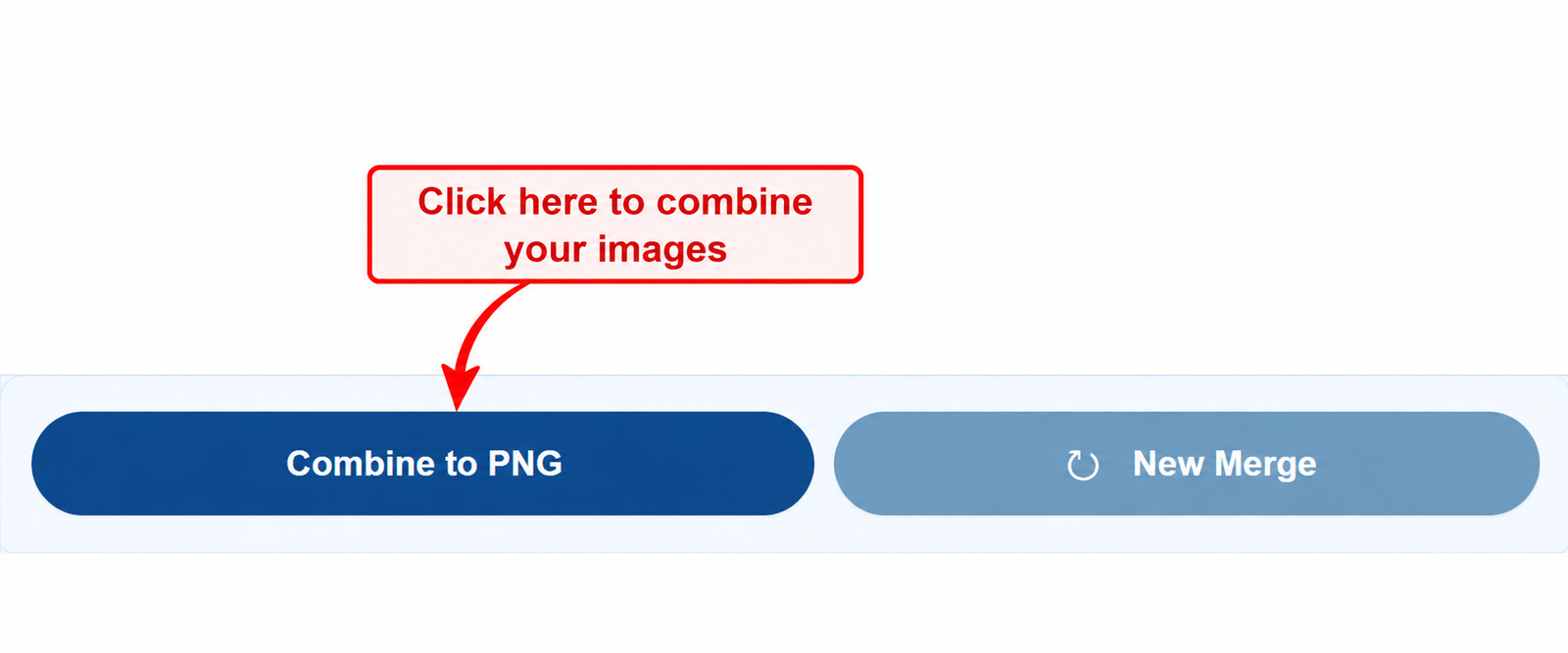
When your images and layout are ready, click Combine to PNG to create your output image. The tool processes your selected files into a PNG result based on your chosen settings. For a single image, you can convert it to PNG; for multiple images, you can combine them into one picture and download the finished file.

Combine JPG JPEG and PNG images into one PNG file and download the result

Why Use Our Merge JPG to PNG Tool?

Our Merge JPG to PNG tool provides a simple way to convert images and combine multiple pictures into one PNG file. Whether you need to change an image format or organize several pictures into a single layout, you can complete the process online without installing additional software.

Convert JPG and JPEG Images to PNG

Convert JPG and JPEG images into PNG format directly in your browser. This is useful when you need a PNG file for a document, presentation, design project, or another task that requires this image format.

Combine Multiple Images into One PNG

Bring multiple images together in a single output file. Arrange your pictures in the order you prefer and create a combined image for tutorials, screenshots, comparisons, reports, or visual guides.

Choose a Horizontal or Vertical Layout

Organize your images horizontally or vertically to suit your project. Adjust the spacing and alignment to make the final image easier to view and share.

Use the Tool Without Installing Software

Work with your images through a web browser instead of installing a separate image editor. The tool is designed for a straightforward workflow on supported desktop and mobile browsers.

Keep Your Image Workflow Simple

Upload your images, review the previews, select your layout, and create your PNG file in a few straightforward steps. This makes Merge JPG to PNG online useful for everyday image conversion and combining tasks.

Please note that converting a JPG image to PNG does not restore image details lost during earlier compression. Also, JPG files do not contain transparency to recover; transparent areas can only be present when supported by the source image and the conversion or combining process.

Merge JPG vs PNG: What Is the Difference?

JPG and PNG are two widely used image formats, but they serve different purposes. When you merge JPG to PNG, understanding these differences can help you choose the right format for your images and project.

Feature JPG / JPEG PNG
Compression Lossy compression Lossless compression
Typical File Size Often smaller for photographs Can be larger, depending on image content
Transparency Not supported Supported
Photographs Often a good choice Useful when lossless storage is preferred
Logos and Graphics May show compression artifacts Often suitable for sharp edges and graphics
Repeated Saving Repeated lossy saves may reduce quality Lossless encoding avoids additional lossy compression
Common Uses Photos, web images, and sharing Logos, screenshots, graphics, and transparent images

When Should You Convert JPG to PNG?

Convert JPG to PNG when you need a PNG file for a specific application, want to combine images into one PNG, or prefer PNG's lossless format for subsequent editing. Converting a JPG to PNG does not restore details already lost through JPG compression, and it usually does not make the image file smaller.

When Is PNG the Better Choice?

PNG is often a good choice for screenshots, interface graphics, diagrams, and images that need transparent areas. If you are combining pictures, a PNG output can also be useful when you want a single image file that supports transparency in its canvas or background.

Frequently Asked Questions About Merge JPG to PNG

What does Merge JPG to PNG do?

Merge JPG to PNG lets you convert JPG or JPEG images into PNG format. You can also upload multiple images and combine them into one PNG image when you want to create a single picture from several files.

Can I convert JPG to PNG online for free?

Yes, you can use the online tool to convert supported images without installing desktop software. Upload your image, process it with the tool, and download the resulting PNG file.

Can I merge multiple JPG images into one PNG?

Yes. Add multiple images, arrange them in your preferred order, and choose a horizontal or vertical layout. The tool combines the images into one PNG file.

Can I convert just one JPG to PNG?

Yes, you can upload a single JPG or JPEG image when you only need to change its format. You do not need to combine it with other images.

Does merging JPG to PNG improve image quality?

Merge JPG to PNG does not restore details already lost during JPG compression. PNG uses lossless compression for its own image data, but converting an existing JPG cannot recover the original information.

Will my PNG file be smaller than the original JPG?

Not necessarily. PNG files are often larger than JPG files for photographs. The resulting file size depends on the image content, dimensions, and format.

Can PNG images have transparent backgrounds?

Yes, PNG supports transparency. However, converting a JPG image to PNG does not recreate transparency that was not present in the original image. Transparency in a combined image depends on the source images and how the tool handles the output canvas.

Can I choose how my images are arranged?

Yes. When combining multiple images, you can choose a horizontal or vertical layout and adjust the available spacing and alignment settings to suit your needs.

Can I use Merge JPG to PNG on my phone?

The tool is designed to work in supported web browsers, including mobile browsers. You can upload images from your device, process them, and download the result, subject to your browser and device capabilities.

Do I need to install software to merge JPG to PNG?

No separate image-editing application is required. You can use the online tool in a supported browser to convert a single image or combine multiple images into a PNG file.

Scroll to Top