Combine & Merge Multiple Images into a Single File Instantly!
Merge multiple JPG or JPEG images into one image online. Upload your pictures, arrange them the way you want, and download your combined image in your browser.
Your Combined Image Is Ready
Use our Merge JPG tool to combine multiple pictures into one easy-to-share image. CombJPG lets you merge JPG, JPEG, and PNG files online without complicated photo-editing software. Upload your images, arrange them in your preferred order, select a layout, and create your combined image directly in your browser.
With this Combine JPG Images Online tool, you can place pictures side by side or stack them vertically, with options to adjust spacing and alignment. Whether you need to join screenshots, create before-and-after comparisons, organize scanned pages, or put several pictures into one file, you can combine your images in just a few simple steps. Choose JPG, JPEG, or PNG as your output format to suit your needs.
Explore More Free Image and PDF Tools
What Does It Mean to Combine JPG Images?
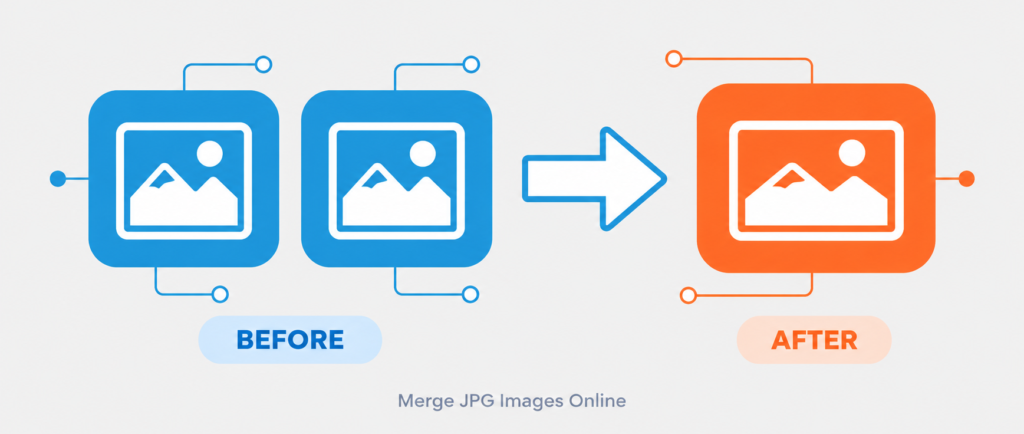
Merge JPG images online means combining two or more pictures into a single image file. Instead of managing separate pictures, you can combine JPG images side by side or stack them vertically to create one organized image. This makes it easier to share screenshots, compare photos, arrange scanned pages, and keep related pictures together.
With the CombJPG Merge JPG tool, you can upload multiple JPG, JPEG, or PNG images, arrange them in your preferred order, and choose a horizontal or vertical layout. Adjust the spacing and alignment to create a neat result, even when your pictures have different dimensions. You can also choose a suitable output format based on your needs.
Why Merge JPG Files Online?
A JPG merger is useful when you want to put multiple pictures into one image without opening complicated photo-editing software. For example, you can merge screenshots from a tutorial, create before-and-after comparisons, combine product photos, or place scanned documents together for convenient viewing.
When you merge JPG files online, the goal is to make several images easier to manage as one composition. Combining related pictures can also help when preparing content for websites, presentations, reports, or social media posts.
How to Join JPG Images with CombJPG?
Using our online JPG image merger is straightforward:
- Upload your images: Select the JPG, JPEG, or PNG files you want to combine.
- Choose a layout: Place your images horizontally side by side or vertically one below another.
- Adjust the arrangement: Set the spacing and alignment to suit your images.
- Select the output format: Choose JPG, JPEG, or PNG if available in the tool settings.
- Create and download: Generate your combined image and download the finished file.
Whether you call it a JPG joiner, JPG combiner, or image merger, the purpose is the same: bringing separate pictures together in one convenient image. CombJPG makes it easy to arrange your pictures online without needing advanced editing skills.
Ready to combine your pictures? Upload your files to the Merge JPG tool above and create a single image in just a few steps.
Why Use Our Tool to Merge JPG Files Online?
Our Merge JPG tool makes it easy to combine multiple pictures into one image without complicated editing software. Upload your images, choose how they should be arranged, adjust the spacing and alignment, and create a combined image in just a few simple steps.
CombJPG supports JPG, JPEG, and PNG images, so you can bring different image formats together in one project. Whether you want to merge JPG files online horizontally or vertically, the available layout options help you organize your pictures according to your needs.
You can use this JPG image merger for everyday tasks such as joining screenshots, arranging scanned pages, comparing product photos, creating before-and-after images, or putting related pictures into one file. Instead of sharing several separate images, you can create a single composition that is easier to view and share.
Another benefit is convenience. You can combine JPG images online directly in your browser without installing a separate image editor. The straightforward interface keeps the process focused on uploading, arranging, and exporting your images. Choose the supported output format that best suits your project and download your finished image.
Supported Image Formats and Output Options
CombJPG lets you bring together images in different formats using a simple online workflow. You can upload JPG, JPEG, and PNG images and arrange them into one combined image. This is useful when your pictures come from different devices, screenshots, or image sources.
Choose a horizontal layout to place images side by side, or use a vertical layout to stack them one below another. You can also adjust the spacing and alignment to organize your pictures and create a clean final result.
JPG vs. PNG: Which Format Should You Use?
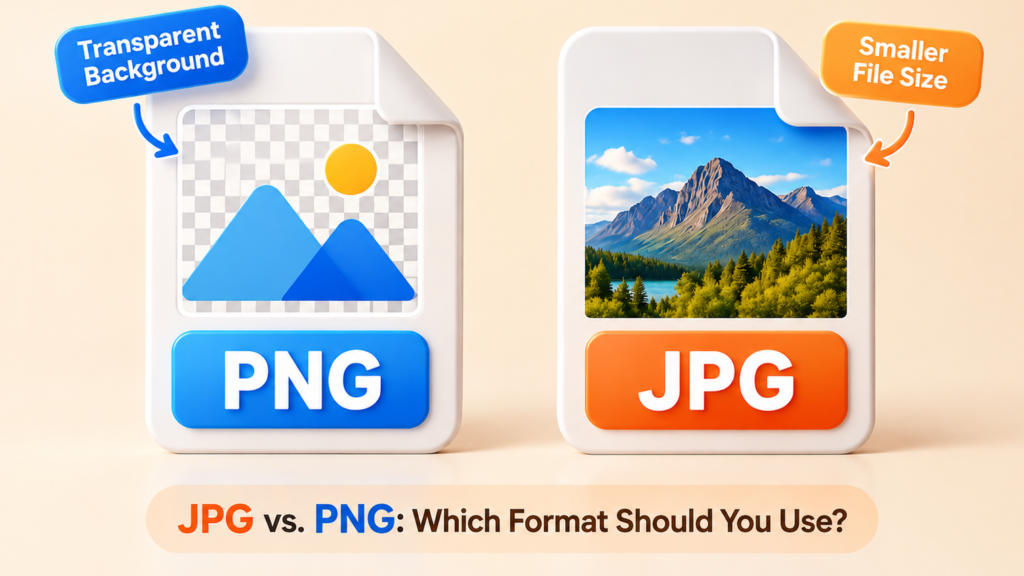
JPG and PNG serve different purposes, so choosing the right format depends on how you plan to use your combined image.
- JPG/JPEG: A practical choice for photographs, everyday images, and sharing files with a relatively small file size.
- PNG: Useful for graphics, screenshots, text-heavy images, and visuals that need transparency.
- Mixed image formats: You can combine supported JPG, JPEG, and PNG files in the same project.
Select the output format available in the CombJPG tool that best suits your needs. If you need transparency, remember that JPG does not support transparent backgrounds, whereas PNG does.
Merge JPG Images on Mobile, Tablet, and Desktop
You can use CombJPG to merge JPG images online from a compatible browser on a mobile phone, tablet, or desktop computer. There is no need to install a separate image editor just to arrange several pictures into one image.
On a mobile phone, select your pictures from your device, choose a horizontal or vertical layout, and adjust the available settings. On a tablet or desktop, you can follow the same process on a larger screen, which may make arranging multiple images more convenient.
Whether you want to join screenshots on your phone, combine photos on a tablet, or organize scanned pages on a computer, the process is straightforward: upload your images, arrange them, choose the available output settings, and download the finished file.
For the best experience, use an updated browser and make sure you can access your selected images and downloaded files on your device.
Combine JPG Online vs. Traditional Image Editing
When you only need to merge JPG images, a dedicated online tool can offer a more straightforward workflow than using a full-featured photo editor. Compare the main differences below to see which approach suits your task.
| Feature | CombJPG.Com | Traditional Image Editor |
|---|---|---|
| Combine multiple images | Designed for image combining | Usually possible |
| JPG, JPEG, and PNG support | Supported input formats | Depends on the software |
| Horizontal layout | Available | May require manual arrangement |
| Vertical layout | Available | May require manual arrangement |
| Image spacing | Adjustable | Depends on the editor |
| Image alignment | Adjustable | Depends on the editor |
| Multiple-image projects | Supported | Usually supported |
| Installation | Works in a browser | Depends on the software |
| Workflow | Upload, arrange, and combine | Varies by application |
For simple image-combining tasks, a dedicated JPG combiner keeps the process focused on bringing pictures together. You can arrange your images, choose a layout, and create one combined file without learning the advanced features of a full photo editor.
Ready to merge jpg and your pictures? Use the CombJPG.com tool above to upload your images and create your combined image online.
Frequently Asked Questions About Merging JPG Images
Can I combine JPG images online for free?
Yes, you can use CombJPG to combine JPG images online for free without installing separate image-editing software. Upload your pictures, choose a horizontal or vertical layout, adjust the available settings, and download your combined image.
Which image formats does CombJPG support?
CombJPG supports JPG, JPEG, and PNG images as input formats. You can combine supported image types in the same project and create a single image using the output format available in the tool.
Can I merge JPG files horizontally or vertically?
Yes. You can merge JPG files horizontally to place pictures side by side or vertically to stack them one below another. Choose the layout that best suits your screenshots, photos, or scanned pages.
How do I combine multiple JPG images into one file?
Upload the images you want to combine, arrange them in your preferred order, select a layout, and adjust the spacing and alignment. Then create and download your merged JPG image using the tool above.
Can I change the order of images before merging them?
Yes. You can arrange your uploaded pictures in the desired sequence before creating the final image. Checking the order first helps ensure your combined image displays the pictures as intended.
Can I adjust spacing and alignment between images?
Yes. CombJPG provides spacing and alignment options to help you organize your pictures. Adjust the available settings to create a cleaner layout when combining images of different sizes.
Does the CombJPG image merger work on mobile devices?
Yes. You can access CombJPG through a compatible browser on a smartphone, tablet, laptop, or desktop computer. The responsive interface makes it easier to merge JPG images online across different screen sizes.
Do I need to install software to merge JPG files?
No installation is required. Open CombJPG in your browser, upload your supported images, choose your preferred layout, and create your combined image online.
What can I do with a merged JPG image?
A merged image can help you organize screenshots, compare before-and-after photos, group related pictures, or arrange scanned pages in one file. You can download the result for sharing, presentations, or other personal and work projects.
Can I combine PNG and JPEG images into one JPG?
You can upload supported JPG, JPEG, and PNG images together. If JPG is available as your selected output format, you can save the combined result as a single JPG image. Keep in mind that JPG does not preserve transparent backgrounds.