Want to Merge JPG to PDF online for free without downloading software? Our JPG to PDF Converter lets you Convert Images to One PDF File directly in your browser. Upload multiple JPG or JPEG images, arrange them in the correct order, and choose your preferred page size. Create a PDF document in just a few clicks and download it instantly.
Use our JPG to PDF Online Free tool to Combine Multiple JPG Images into One PDF quickly and easily. This JPEG to PDF Converter also supports PNG images, making it a useful Image to PDF Converter for everyday tasks. Merge JPG Images into Single PDF to organize photos, scanned documents, or important images into one convenient file for sharing, storing, or printing.
What Does It Mean to Merge JPG to PDF?
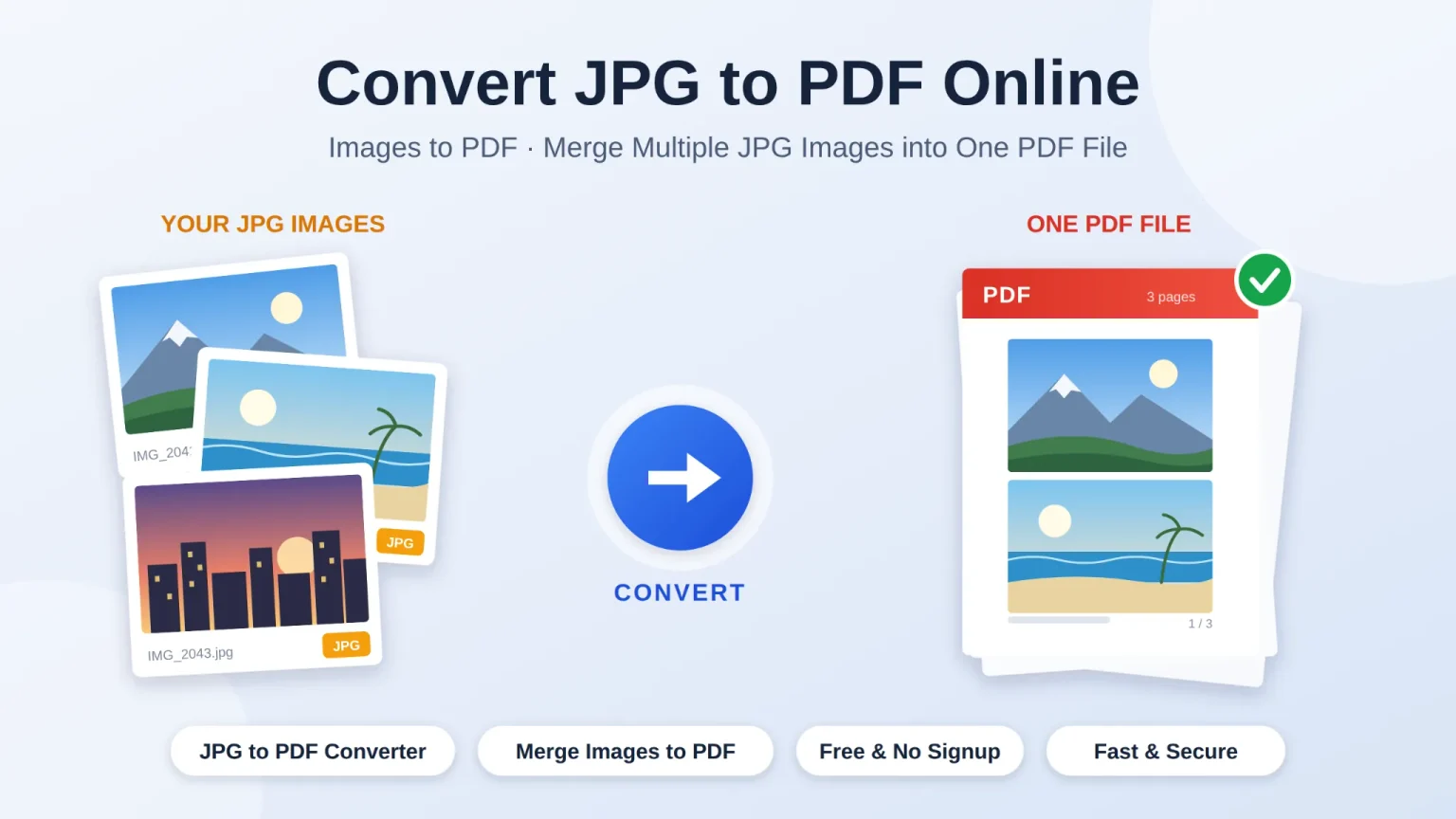
When you Merge JPG to PDF, you combine two or more separate JPG or JPEG images into a single PDF document. Our JPG to PDF Converter lets you arrange images in the correct order and place each image on its own PDF page. You can choose your preferred page size and orientation to create a document suitable for sharing, storing, or printing.
People use a JPG to PDF Online Free tool for many everyday tasks, including:
- Combining scanned document pages into one PDF file
- Converting photos and screenshots into a shareable document
- Organizing receipts, forms, and records into a single file
- Creating a PDF from multiple product images or reference photos
- Preparing images for printing, emailing, or online submission
- Using an Image to PDF Converter to organize supported JPG, JPEG, and PNG images
Unlike a full photo editor, our JPEG to PDF Converter focuses on making image-to-PDF conversion simple. Upload your pictures, arrange their order, select your page settings, and Combine Multiple JPG Images into One PDF in just a few clicks. With our free online tool, you can Merge JPG Images into Single PDF without installing additional software.
How to Merge JPG to PDF Online?
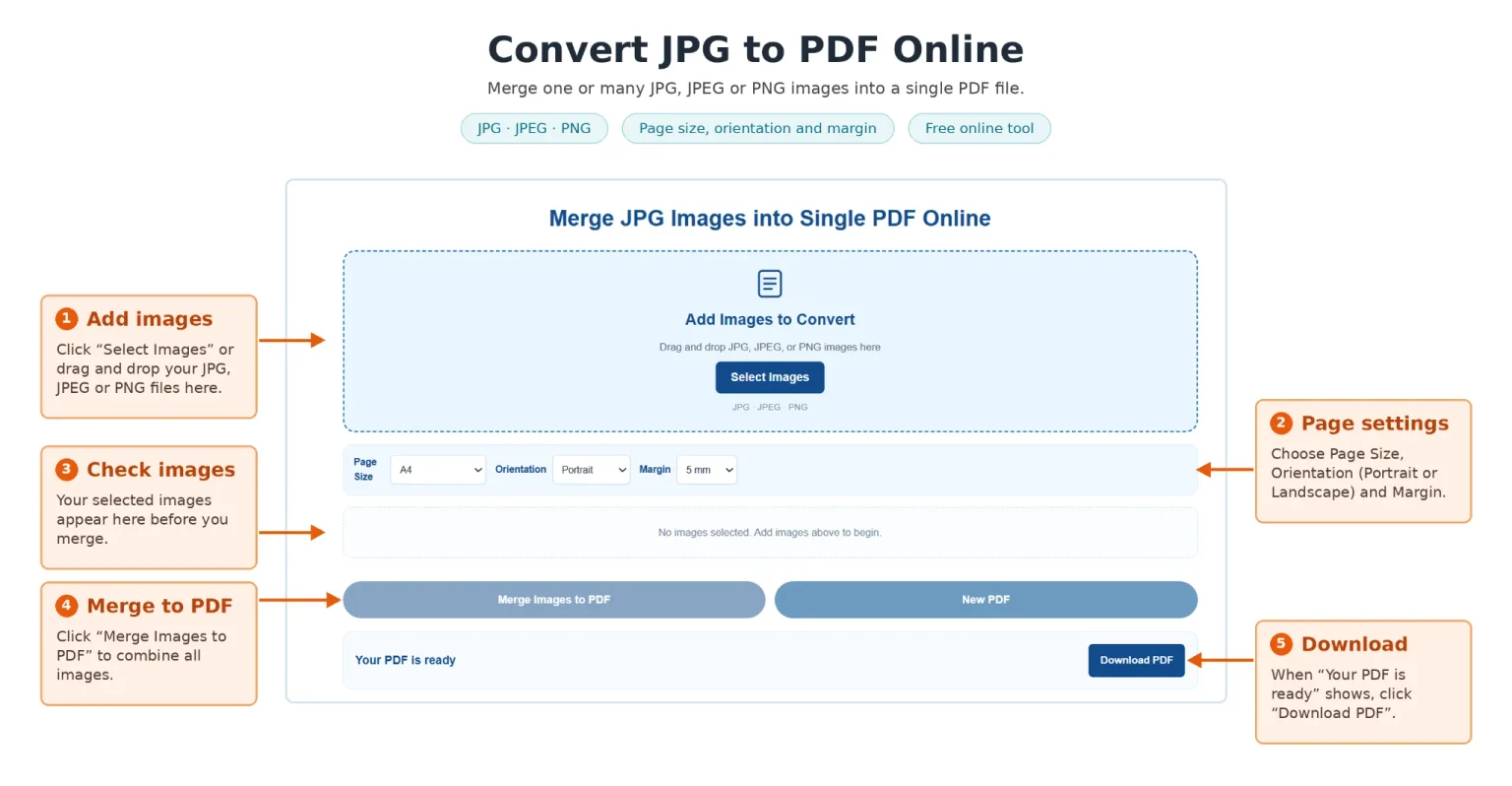
Follow these simple steps to Merge JPG to PDF online and turn multiple images into one organized PDF document.
1. Upload Your JPG Images
Click the Select Images button or drag and drop multiple JPG or JPEG files into the upload area. Our JPG to PDF Converter also supports PNG images, allowing you to upload several supported files at once.
2. Arrange Images and Choose PDF Settings
Review your uploaded images and use the arrow buttons to arrange them in the correct order. Choose your preferred page size, portrait or landscape orientation, and margins before converting. These settings help you prepare your images for a well-organized PDF document.
3. Merge and Download Your PDF
Click Merge Images to PDF to Convert Images to One PDF File. The tool places each image on a separate PDF page and prepares your document for download. Once the conversion is complete, download your PDF and share, save, or print it whenever you need.
Why Use Our Tool to Merge JPG to PDF Online?
Our free Merge JPG to PDF tool makes it easy to combine multiple images into one organized PDF document without installing software. Use our JPG to PDF Converter to upload JPG, JPEG, and PNG images, arrange their order, and select your preferred page size and orientation. The simple interface works directly in your browser, saving you time and effort.
- Free Online Conversion: Use our JPG to PDF Online Free tool without paying for a subscription
- Multiple Image Support: Combine Multiple JPG Images into One PDF in a single conversion
- Easy Image Ordering: Arrange your images before creating the PDF
- Flexible PDF Settings: Choose A4, Letter, or Fit to Image, along with portrait or landscape orientation
- Quick Downloads: Create your PDF and download it when processing finishes
- Mobile and Desktop Friendly: Convert images using a phone, tablet, or computer
- Simple Browser-Based Tool: No separate image-conversion software is required
Whether you need to organize scanned documents, photos, receipts, or screenshots, our JPEG to PDF Converter provides a straightforward way to Convert Images to One PDF File for sharing, storing, or printing.
JPG vs JPEG — What’s the Difference?
JPG and JPEG refer to the same image format. JPEG stands for Joint Photographic Experts Group, the organization behind the format. The .jpg extension became common on Windows because older systems often limited file extensions to three characters, while .jpeg was also widely used on other systems.
When you Merge JPG to PDF using our online tool, you can upload supported JPG and JPEG images together without worrying about their file extensions. Our JPG to PDF Converter helps you combine your images into one organized PDF document, making it easier to share, store, or print them.
Tips for Better Results When You Merge JPG to PDF Online
Follow these practical tips to create a well-organized PDF:
- Arrange Images in the Correct Order — Check the sequence of your images before converting, especially when combining scanned document pages
- Use Clear, High-Quality Images — Starting with sharp, readable images helps produce a better PDF document
- Choose the Right Page Settings — Select A4, Letter, or Fit to Image, and choose portrait or landscape orientation according to your needs
- Check Image Alignment — Review the order and appearance of your images before creating the PDF
- Consider the File Size — Combining several large images can produce a larger PDF. Resize or compress images before conversion if you need a smaller file
- Keep Documents Organized — Use meaningful file names and arrange receipts, photos, or scanned pages in a logical order
With our JPG to PDF Online Free tool, you can Combine Multiple JPG Images into One PDF in a few simple steps. Upload your JPG, JPEG, or PNG images, select your settings, and download your completed PDF when the conversion finishes.
Merge JPG to PDF Online — Start Now
Stop wasting time converting images one by one. Use our free JPG to PDF Converter to Merge JPG Images into a Single PDF quickly and conveniently. Upload your pictures, arrange their order, select your preferred settings, and download your PDF when it is ready.
Upload your images. Choose your settings. Download your PDF.
FAQ
Is It Free to Merge JPG to PDF Online?
Yes, our Merge JPG to PDF tool is free to use. You can combine multiple JPG images into one PDF without paying for a subscription or installing additional software.
Do I Need an Account to Convert JPG Images to PDF?
No account or sign-up is required. Open our JPG to PDF Converter, upload your images, choose your settings, and create your PDF directly in your browser.
How Many JPG Images Can I Merge into One PDF?
You can upload multiple JPG or JPEG images and Combine Multiple JPG Images into One PDF. The number of images you can process may depend on your device’s available memory and browser performance.
Will Merge JPG to PDF Reduce Image Quality?
The output quality depends on the original images and the conversion process. For best results, upload clear, high-resolution images when you Convert Images to One PDF File.
Can I Merge JPG and JPEG Images Together?
Yes, JPG and JPEG are extensions for the same image format. You can upload both file types to our JPEG to PDF Converter and combine them in one PDF document.
Can I Convert PNG Images Using This Tool?
Yes, the tool supports JPG, JPEG, and PNG images. Use this Image to PDF Converter to combine supported image files into a single PDF document.
Can I Merge JPG to PDF on My Phone?
Yes, you can use our Merge JPG to PDF Online Free tool on supported smartphones, tablets, and desktop computers. Open the page in your browser, select your images, and download the completed PDF.
Can I Choose the PDF Page Size and Orientation?
Yes, You can choose A4, Letter, or Fit to Image page size, select portrait or landscape orientation, and adjust the margins before converting your images.
Are My Uploaded Images Stored Online?
Images are processed in your browser by this tool, and the PDF is created on your device. Avoid uploading sensitive documents unless you are comfortable with the site’s privacy practices.